Introduction
The rapid improvements in next-generation sequence techniques allow fast and cost-effective collection of large amounts of sequence data. Storing and analyzing this data is rapidly becoming a bottleneck. Armed with a relatively simple computational toolbox, a biologist can already efficiently analyze these huge data sets to answer specific biological questions. In this practical we will introduce the command line environment of the Unix shell. Specifically, we will use Bash, which is the default shell on most Unix systems.
We will the work with the GEUVADIS RNA-seq data set. The GEUVADIS project aims to gain insight into the human genome and its role in health and medicine. It is an European project involving 17 different partners. Recently, the consortium performed transcriptome sequencing of 465 lymphoblastoid cell lines from the 1000 Genomes project, the results of which are published in http://dx.doi.org/10.1038/nature12531.
Login and file transfer
To remotely access a Linux server we will use the SSH (Secure Shell) protocol. On Windows you will need a SSH client called Putty. This is a terminal program that will allow you to run commands that will be executed on the server. To transfer files to the server from your own computer we will use SCP (Secure Copy) which is a file transfer protocol that runs over SSH. The SCP client for Windows is called WinSCP.
Both Putty and WinSCP are open source, freely available programs. You can download these programs and install them on your own computer.
Connecting to the server
To connect to the server we will use during this practical course you will need three things:
- server name (hostname or IP address)
- username
- password
For the practical course, you can find the login information on Blackboard.
Open Putty, fill in the Host Name and click Open. Leave the port to 22 (this is the default SSH port). Supply your username followed by <Enter> and your password followed by <Enter>. Now you will be greeted by 'the black screen', which is your terminal shell. A shell is basically a program that takes your input from the keyboard and supplies it the operating system. We will use bash. This is the default shell installed on most typical Linux systems. There are alternative shells, but this is outside the scope of this tutorial.
Type the command whoami followed by <Enter>. This will run the program called whoami and show the output on your screen.
$ whoamisimonThroughout the course we will use code blocks like the one above to illustrate the commands to type in your terminal, followed by the output. You will not type the
$character, this reflects the prompt. In your case it will look something like this:student14@ghe ~ $
Now, let's try something else. Run the pwd command (print current working directory).
$ pwd/home/simonThis will show you the current directory (or 'folder' in Windows). By default you are in your home directory on the server, which is illlustrated in the example above by /home/simon. You will note that this looks different from a path in Windows, we will further elaborate on this later in the course.
Congratulations, you have run your first Linux commands on a remote server!
Type logout or press <Ctrl>-D to quit Putty (or use the close button).
$ logoutFile transfer
To transfer files to the server from your own computer (and the other way around) you can use WinSCP. We will now put some files on the server that we will use in the later exercises. Download the following file to your computer:
http://mbdata.science.ru.nl/courses/ghe/ghe_files_practical.tgz
Now start WinSCP and login to the server with the same credentials you used for Putty. If you've successfully logged in, you will be greeted with a screen that will look familiar if you've ever used FTP. On the left it shows your local computer, on the right is the remote server. Now transfer the file that you downloaded (ghe_files_practical.tgz) to the server using the arrow button or <F5>.
Start Putty, and login. The command ls will list the files in your current directory.
$ lsghe_files_practical.tgzIf you've correctly transferred the file, your output will look similar to what is shown above.
Exercises: login and file transfer
- Copy the file http://mbdata.science.ru.nl/courses/ghe/ghe_files_practical.tgz to your home directory on the server.
Files and directories
Moving around and looking
As stated before, when you login to the server you are located in your home directory. To understand what a "home directory" is, let's have a look at how the file system as a whole is organized. At the top is the root directory that holds everything else. We refer to it using a slash character / on its own; this is the leading slash in /home/simon.
Inside the root directory are several other directories: bin (which is where some built-in programs are stored), data (for miscellaneous data files), home (where users' personal directories are located), tmp (for temporary files that don't need to be stored long-term), and so on.
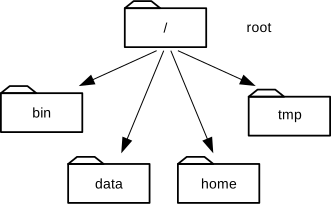
The Linux file system.
We know that our current working directory /home/simon is stored inside /home because /home is the first part of its name. Similarly, we know that /home is stored inside the root directory / because its name begins with /. Underneath /home, we find one directory for each user with an account on this machine.
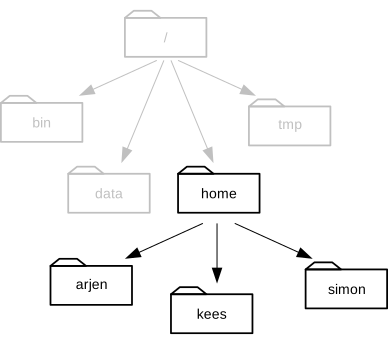
Home directories.
Notice that there are two meanings for the
/character. When it appears at the front of a file or directory name, it refers to the root directory. When it appears inside a name, it's just a separator.
You can change directories using the cd command. For instance, to change your directory to /usr/bin.
$ cd /usr/bin/$ pwd/usr/binThis will change your working directory to /usr/bin. The part following the cd command is an argument. Basically, you tell cd to change to a specific directory, in this case /usr/bin.
What happens when you run
cdwithout any arguments?
Let's see what's in Simon's home directory.
$ cd /home/simon
$ ls
bin data doc music notes.txt todo.doc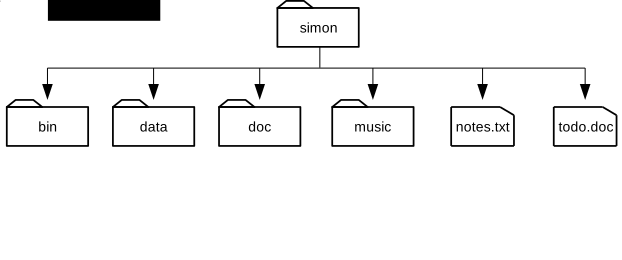
The contents of Simon's home directory.
ls prints the names of the files and directories in the current directory in alphabetical order, arranged neatly into columns. We can make its output more comprehensible by using the flag -F, which tells ls to add a trailing / to the names of directories:
$ ls -Fbin/ data/ doc/ music/ notes.txt todo.docHere, we can see that /home/simon/ contains four sub-directories. The names that don't have trailing slashes, like notes.txt and todo.doc, are plain files. And note that there is a space between ls and -F: without it, the shell thinks we're trying to run a command called ls-F, which doesn't exist.
Now let's take a look at what's in Simon's data directory by running ls -F data, i.e., the command ls with the arguments -F and data. The second argument—the one without a leading dash—tells ls that we want a listing of something other than our current working directory:
$ ls -F dataghe/The output shows us that there is one sub-sub-directory. Organizing things hierarchically in this way helps us keep track of our work: it's possible to put hundreds of files in our home directory, just as it's possible to pile hundreds of printed papers on our desk, but it's a self-defeating strategy.
Notice, by the way that we spelled the directory name data. It doesn't have a trailing slash: that's added to directory names by ls when we use the -F flag to help us tell things apart. And it doesn't begin with a slash because it's a relative path, i.e., it tells ls how to find something from where we are, rather than from the root of the file system.
If we run ls -F /data (with a leading slash) we get a different answer, because /data is an absolute path:
$ ls -F /dataannotation/ genomes/The leading / tells the computer to follow the path from the root of the filesystem, so it always refers to exactly one directory, no matter where we are when we run the command.
What if we want to change our current working directory? Before we do this, pwd shows us that we're in /home/simon, and ls without any arguments shows us that directory's contents:
$ pwd/home/simon$ lsbin/ data/ doc/ music/ notes.txt todo.docWe can use cd followed by a directory name to change our working directory. cd stands for "change directory", which is a bit misleading: the command doesn't change the directory, it changes the shell's idea of what directory we are in.
$ cd datacd doesn't print anything, but if we run pwd after it, we can see that we are now in /home/simon/data.
If we run ls without arguments now, it lists the contents of /home/simon/data, because that's where we now are:
$ pwd/home/simon/data$ ls gheWe now know how to go down the directory tree: how do we go up? We could use an absolute path:
$ cd /home/simonbut it's almost always simpler to use cd .. to go up one level:
$ pwd/home/simon/data$ cd .... is a special directory name meaning "the directory containing this one", or more succinctly, the parent of the current directory. Sure enough, if we run pwd after running cd .., we're back in /home/simon:
$ pwd/home/simonThe special directory .. doesn't usually show up when we run ls. If we want to display it, we can give ls the -a flag:
$ ls -F -a./ ../ bin/ data/ doc/ music/ notes.txt todo.doc-a stands for "show all"; it forces ls to show us file and directory names that begin with ., such as .. (which, if we're in /home/simon, refers to the /home directory). As you can see, it also displays another special directory that's just called ., which means "the current working directory". It may seem redundant to have a name for it, but we'll see some uses for it soon.
The special names
.and..don't belong tols; they are interpreted the same way by every program. For example, if we are in/home/simon/data, the commandls ..will give us a listing of/home/simon.
Managing files and directories
We know how to explore files and directories, but how do we create them in the first place? Let's go back to Simon's home directory, /home/simon, and use ls -F to see what it contains:
$ pwd/home/simon$ ls -Fbin data doc music notes.txt todo.docLet's create a new directory called report using the command mkdir report (which has no output):
$ mkdir reportAs you might (or might not) guess from its name, mkdir means "make directory". Since report is a relative path (i.e., doesn't have a leading slash), the new directory is made below the current working directory:
$ ls -Fbin/ data/ doc/ music/ notes.txt report/ todo.docHowever, there's nothing in it yet:
$ ls -F reportLet's change our working directory to report using cd, then run a text editor called Nano to create a file called draft.txt:
$ cd report
$ nano draft.txt
Which Editor?
When we say, "
nanois a text editor," we really do mean "text": it can only work with plain character data, not tables, images, or any other human-friendly media. We use it in examples because almost anyone can drive it anywhere without training, but please use something more powerful for real work. On Unix systems (such as Linux and Mac OS X), many programmers use Emacs or Vim (both of which are completely unintuitive, even by Unix standards), or a graphical editor such as Gedit. On Windows, you may wish to use Notepad++.No matter what editor you use, you will need to know where it searches for and saves files. If you start it from the shell, it will (probably) use your current working directory as its default location. If you use your computer's start menu, it may want to save files in your desktop or documents directory instead. You can change this by navigating to another directory the first time you "Save As..."
Let's type in a few lines of text, then use Control-O to save the file and write our data to disk:
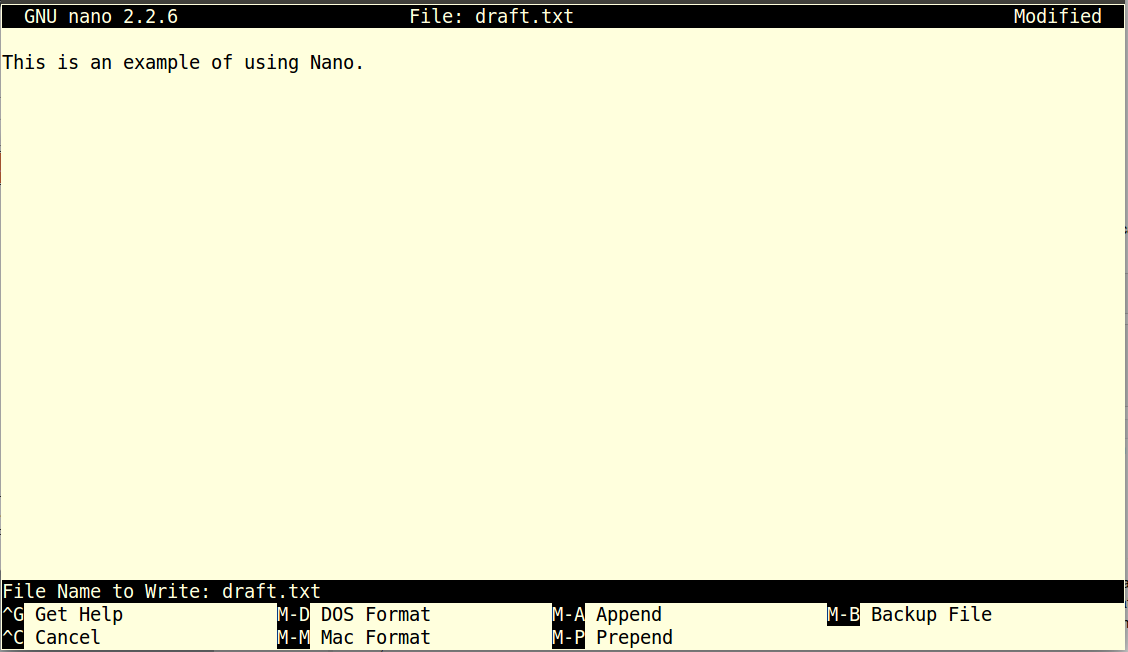
Once our file is saved, we can use Control-X to quit the editor and return to the shell. (Unix documentation often uses the shorthand ^A to mean "control-A".) nano doesn't leave any output on the screen after it exits, but ls now shows that we have created a file called draft.txt:
$ ls draft.txtLet's tidy up by running rm draft.txt:
$ rm draft.txtThis command removes files ("rm" is short for "remove"). If we run ls again, its output is empty once more, which tells us that our file is gone:
$ lsDeleting Is Forever
Unix doesn't have a trash bin: when we delete files, they are unhooked from the file system so that their storage space on disk can be recycled. Tools for finding and recovering deleted files do exist, but there's no guarantee they'll work in any particular situation, since the computer may recycle the file's disk space right away.
Let's re-create that file and then move up one directory to /home/simon using cd ..:
$ pwd/home/simon/report$ nano draft.txt
$ lsdraft.txt$ cd ..If we try to remove the entire report directory using rm report, we get an error message:
$ rm reportrm: cannot remove `report': Is a directoryThis happens because rm only works on files, not directories. The right command is rmdir, which is short for "remove directory". It doesn't work yet either, though, because the directory we're trying to remove isn't empty:
$ rmdir reportrmdir: failed to remove `report': Directory not emptyThis little safety feature can save you a lot of grief, particularly if you are a bad typist. To really get rid of report we must first delete the file draft.txt:
$ rm report/draft.txtThe directory is now empty, so rmdir can delete it:
$ rmdir reportWith Great Power Comes Great Responsibility
Removing the files in a directory just so that we can remove the directory quickly becomes tedious. Instead, we can use
rmwith the-rflag (which stands for "recursive"):$ rm -r reportThis removes everything in the directory, then the directory itself. If the directory contains sub-directories,
rm -rdoes the same thing to them, and so on. It's very handy, but can do a lot of damage if used without care.
Let's create that directory and file one more time. (Note that this time we're running nano with the path report/draft.txt, rather than going into the report directory and running nano on draft.txt there.)
$ pwd/home/simon$ mkdir report
$ nano report/draft.txt
$ ls reportdraft.txtdraft.txt isn't a particularly informative name, so let's change the file's name using mv, which is short for "move":
$ mv report/draft.txt report/ghe_practical_report.txtThe first parameter tells mv what we're "moving", while the second is where it's to go. In this case, we're moving report/draft.txt to report/ghe_practical_report.txt, which has the same effect as renaming the file. Sure enough, ls shows us that report now contains one file called ghe_practical_report.txt:
$ ls reportghe_practical_report.txtJust for the sake of inconsistency, mv also works on directories—there is no separate mvdir command.
About file names
File names, as well as commands, are case sensitive. The files
Mydocument.docandmydocument.docandMyDOCUMENT.docare all different files. This is different from WindowsDon't use spaces in file names! Save yourself a lot of trouble. Yes, we know you might be used to this in Windows. Don't do it in Linux. Use the underscore character (
_) to deliniate words instead of spaces.You might have noticed that a lot of the files are named <something>.<something>. The second part is the file name extension. Linux doesn't really care about the extension. You, however, should. By convention the extension reflects the type of data in the file. Try to always use an extension that is informative for the type of file. For instance
.txtfor a text file,.fafor a FASTA file or.bedfor a BED file.
Let's move ghe_practical_report.txt into the current working directory. We use mv once again, but this time we'll just use the name of a directory as the second parameter to tell mv that we want to keep the filename, but put the file somewhere new. (This is why the command is called "move".) In this case, the directory name we use is the special directory name . that we mentioned earlier.
$ mv report/ghe_practical_report.txt .The effect is to move the file from the directory it was in to the current working directory. ls now shows us that report is empty:
$ ls reportFurther, ls with a filename or directory name as a parameter only lists that file or directory. We can use this to see that ghe_practical_report.txt is still in our current directory:
$ ls ghe_practical_report.txtghe_practical_report.txtThe cp command works very much like mv, except it copies a file instead of moving it. We can check that it did the right thing using ls with two paths as parameters—like most Unix commands, ls can be given thousands of paths at once:
$ cp ghe_practical_report.txt report/my_report.txt
$ ls ghe_practical_report.txt report/my_report.txt
ghe_practical_report.txt report/my_report.txtTo prove that we made a copy, let's delete the ghe_practical_report.txt file in the current directory and then run that same ls again. This time it tells us that it can't find ghe_practical_report.txt in the current directory, but it does find the copy in report that we didn't delete:
$ ls ghe_practical_report.txt report/my_report.txtls: cannot access ghe_practical_report.txt: No such file or directory
report/my_report.txtAnother Useful Abbreviation
The shell interprets the character
~(tilde) at the start of a path to mean "the current user's home directory". For example, if Simon's home directory is/home/simon, then~/datais equivalent to/home/simon/data. This only works if it is the first character in the path:here/there/~/elsewhereis not/home/simon/elsewhere.
List of commands
cd- change directorycp- copy a filels- list files and directoriesmkdir- make a new directorymv- move or rename a filenano- a simple text editorrm- delete file(s)rmdir- delete a directory
Exercises: Files and directories
- Unpack
ghe_files_practical.tgz. The.tgzfile is a compressed tarball, a file packaged withtarand compressed withgzip. You unpack such a file using the following command:
$ tar xzfv ghe_files_practical.tgzThe tar command is followed by four arguments: x for extract, z to uncompress using gzip, f to specify we have a file and v for verbose.
How many files do you now have in your home directory?
Let's clean up a bit. Delete
ghe_files_practical.tgz. We don't need it anymore, as it is unpacked.Create a directory called
experimentsand adatadirectory.Move all
.txtfiles toexperimentsand all.bamfiles todata. How many files are now in each directory?
There's one file, exercises.txt, that doesn't belong in the experiments directory. Let's move it back to your home directory. We're now going to use this file to record the answers to these questions.
Move the file
exercises.txtback to your home directory.Make a copy of this file, called
answers.txt.Edit the file
answers.txtusing nano and include the answers and all the commands you used. Hint: use the <up> arrow to see previous commands.
Redirection and pipes
Redirect to a file
Now that we know a few basic commands, we can finally look at the shell's most powerful feature: the ease with which it lets us combine existing programs in new ways. We'll start with a directory called experiments that contains six files describing experiments from the GEUVADIS project. As you can deduce from the .txt extension, these files are simple text format. All the data is represented in a spreadsheet-like format, with columns separated by the <tab> character, a tab-separated text file. Let's have a look at the files.
$ ls experimentsE-GEUV-1.idf.txt E-GEUV-2.idf.txt E-GEUV-3.idf.txt
E-GEUV-1.sdrf.txt E-GEUV-2.sdrf.txt E-GEUV-3.sdrf.txtLet's enter the experiments directory with cd and run the command wc *.txt. wc is the "word count" command: it counts the number of lines, words, and characters in files. The * in *.txt matches zero or more characters, so the shell turns *.txt into a complete list of .txt files:
 $ cd experiments
 $ wc *.txt
36 671 4909 E-GEUV-1.idf.txt
924 36095 503388 E-GEUV-1.sdrf.txt
37 490 3788 E-GEUV-2.idf.txt
452 15415 194024 E-GEUV-2.sdrf.txt
36 772 5652 E-GEUV-3.idf.txt
1827 71946 946539 E-GEUV-3.sdrf.txt
3312 125389 1658300 totalWildcards
*is a wildcard. It matches zero or more characters, so*.txtmatchesE-GEUV-1.idf.txt,E-GEUV-1.sdrf.txt,E-GEUV-2.id.txt, and so on. On the other hand,*srdf.txtonly matchesE-GEUV-1.sdrf.txt,E-GEUV-2.sdrf.txtandE-GEUV-3.sdrf.txt, assrdfdoes not matchidf.When the shell sees a wildcard, it expands the wildcard to create a list of matching filenames before running the command that was asked for. This means that commands like
wcandlsnever see the wildcard characters, just what those wildcards matched.
If we run wc -l instead of just wc, the output shows only the number of lines per file:
$ wc -l *.txt 36 E-GEUV-1.idf.txt
924 E-GEUV-1.sdrf.txt
37 E-GEUV-2.idf.txt
452 E-GEUV-2.sdrf.txt
36 E-GEUV-3.idf.txt
1827 E-GEUV-3.sdrf.txt
3312 totalWe can also use -w to get only the number of words, or -c to get only the number of characters.
Which of these files is longest? It's an easy question to answer when there are only six files, but what if there were 6000? Our first step toward a solution is to run the command:
$ wc -l *.txt > lengthsThe > tells the shell to redirect the command's output to a file instead of printing it to the screen. The shell will create the file if it doesn't exist, or overwrite the contents of that file if it does. (This is why there is no screen output: everything that wc would have printed has gone into the file lengths instead.) ls lengths confirms that the file exists:
$ ls lengthslengthsWe can now send the content of lengths to the screen using cat lengths. cat stands for "concatenate": it prints the contents of files one after another. There's only one file in this case, so cat just shows us what it contains:
$ cat lengths 36 E-GEUV-1.idf.txt
924 E-GEUV-1.sdrf.txt
37 E-GEUV-2.idf.txt
452 E-GEUV-2.sdrf.txt
36 E-GEUV-3.idf.txt
1827 E-GEUV-3.sdrf.txt
3312 totalNow let's use the sort command to sort its contents. We will also use the -n flag to specify that the sort is numerical instead of alphabetical. This does not change the file; instead, it sends the sorted result to the screen:
$ sort -n lengths 36 E-GEUV-1.idf.txt
36 E-GEUV-3.idf.txt
37 E-GEUV-2.idf.txt
452 E-GEUV-2.sdrf.txt
924 E-GEUV-1.sdrf.txt
1827 E-GEUV-3.sdrf.txt
3312 totalWe can put the sorted list of lines in another temporary file called sorted-lengths by putting > sorted-lengths after the command, just as we used > lengths to put the output of wc into lengths. Once we've done that, we can run another command called head to get the first few lines in sorted-lengths:
 $ sort -n lengths > sorted-lengths
 $ head -n 1 sorted-lengths
36 E-GEUV-1.idf.txtUsing the parameter -n 1 with head tells it that we only want the first line of the file; -n 20 would get the first 20, and so on. Since sorted-lengths contains the lengths of our files ordered from least to greatest, the output of head must be the file with the fewest lines.
If you think this is confusing, you're in good company: even once you understand what wc, sort, and head do, all those intermediate files make it hard to follow what's going on. We can make it easier to understand by running sort and head together:
$ sort -n lengths | head -n 1 36 E-GEUV-1.idf.txtThe vertical bar between the two commands is called a pipe. It tells the shell that we want to use the output of the command on the left as the input to the command on the right. The computer might create a temporary file if it needs to, or copy data from one program to the other in memory, or something else entirely; we don't have to know or care.
We can use another pipe to send the output of wc directly to sort, which then sends its output to head:
$ wc -l *.txt | sort -n | head -n 1 36 E-GEUV-1.idf.txtHere's what actually happens behind the scenes when we create a pipe. When a computer runs a program—any program—it creates a process in memory to hold the program's software and its current state. Every process has an input channel called standard input (or "stdin"). Every process also has a default output channel called standard output (or "stdout").
The shell is actually just another program. Under normal circumstances, whatever we type on the keyboard is sent to the shell on its standard input, and whatever it produces on standard output is displayed on our screen. When we tell the shell to run a program, it creates a new process and temporarily sends whatever we type on our keyboard to that process's standard input, and whatever the process sends to standard output to the screen.
Here's what happens when we run wc -l *.txt > lengths. The shell starts by telling the computer to create a new process to run the wc program. Since we've provided some filenames as parameters, wc reads from them instead of from standard input. And since we've used > to redirect output to a file, the shell connects the process's standard output to that file.
If we run wc -l *.txt | sort -n instead, the shell creates two processes (one for each process in the pipe) so that wc and sort run simultaneously. The standard output of wc is fed directly to the standard input of sort; since there's no redirection with >, sort's output goes to the screen. And if we run wc -l *.txt | sort -n | head -n 1, we get three processes with data flowing from the files, through wc to sort, and from sort through head to the screen.
This simple idea is why Unix has been so successful. Instead of creating enormous programs that try to do many different things, Unix programmers focus on creating lots of simple tools that each do one job well, and that work well with each other. This programming model is called pipes and filters. We've already seen pipes; a filter is a program like wc or sort that transforms a stream of input into a stream of output. Almost all of the standard Unix tools can work this way: unless told to do otherwise, they read from standard input, do something with what they've read, and write to standard output.
The key is that any program that reads lines of text from standard input and writes lines of text to standard output can be combined with every other program that behaves this way as well. You can and should write your programs this way so that you and other people can put those programs into pipes to multiply their power.
Redirecting Input
As well as using
>to redirect a program's output, we can use<to redirect its input, i.e., to read from a file instead of from standard input. For example, instead of writingwc E-GEUV-1.sdrf.txt, we could writewc < E-GEUV-1.sdrf.txt. In the first case,wcgets a command line parameter telling it what file to open. In the second,wcdoesn't have any command line parameters, so it reads from standard input, but we have told the shell to send the contents ofE-GEUV-1.sdrf.txttowc's standard input.
Chaining commands into pipelines
Now we will have a look at one of these .srdf.txt files, using a couple of very useful Linux utilities. The .srdf.txt is a metadata file, that lists the Geuvadis samples with essential additional information. One such a specific property, for instance, is "did a sample pass quality control?".
Let's take E-GEUV-3.sdrf.txt and answer a couple of questions:
- How many samples are present in this file?
- How many samples passed quality control
- Which lab (labeled 'Performer' in the file) performed the sequencing?
Usually you should be able to get a description of a file format, however, for now we will assume we don't know exactly what the format is.
When you take a first look at an unknown data file, there are some quick steps you can take to familiarize yourself with it's contents. The first we've already encountered: the number of lines.
$ wc -l E-GEUV-3.sdrf.txt1827 E-GEUV-3.sdrf.txtWhat are the contents of the file. We could use cat, which prints the contents of the file too your screen.
$ cat E-GEUV-3.sdrf.txt ... lots of scrolling lines ...!
^CHowever, this is not very useful as cat will proceed to print 1827 lines to your screen. You can stop this by pressing Ctrl-C).
You can usually press
Ctrl-Cto stop a running process. This is an essential shortcut that you can use anytime you want the currently running process to stop doing whatever it is doing.
As the files you work with in next-generation sequencing experiments are often huge, cat can be awkward. In this case head is a good option.
$ head -n 2 E-GEUV-3.sdrf.txtSource Name Comment[ENA_SAMPLE] Characteristics[Organism] Term Source REF Term Accession Number Characteristics[Strain] Characteristics[population]Comment[1000g Phase1 Genotypes] Comment[Quality Control passed] Comment[Notes] Protocol REF Protocol REF Extract Name Comment[LIBRARY_SELECTION] Comment[LIBRARY_SOURCE] Comment[SEQUENCE_LENGTH] Comment[LIBRARY_STRATEGY] Comment[LIBRARY_LAYOUT] Comment[NOMINAL_LENGTH] Comment[NOMINAL_SDEV] Protocol REFProtocol REF Performer Assay Name Technology Type Comment[ENA_EXPERIMENT] Scan Name Comment[SUBMITTED_FILE_NAME] Comment[ENA_RUN] Comment[FASTQ_URI] Comment[SPOT_LENGTH] Comment[READ_INDEX_1_BASE_COORD] Protocol REF Derived Array Data File Comment [Derived ArrayExpress FTP file] Factor Value[population] Factor Value[laboratory]
HG00096 ERS185276 Homo sapiens NCBI Taxonomy 9606 lymphoblastoid cell line GBR 1 1 P-GEUV-1 P-GEUV-2 HG00096.1.M_111124_6 extract cDNA TRANSCRIPTOMIC 75 RNA-Seq PAIRED 280 0 P-GEUV-5 P-GEUV-6 UNIGE HG00096.1.M_111124_6 high_throughput_sequencing ERX163134 HG00096.1.M_111124_6_1.fastq.gz HG00096.1.M_111124_6_1.fastq.gz ERR188040 ftp://ftp.sra.ebi.ac.uk/vol1/fastq/ERR188/ERR188040/ERR188040_1.fastq.gz 75 76 P-GEUV-7 HG00096.1.M_111124_6.bam ftp://ftp.ebi.ac.uk/pub/databases/microarray/data/experiment/GEUV/E-GEUV-1/HG00096.1.M_111124_6.bam GBR1Still a bit of a mess, but we can already glean some useful information from the output of head. The first line looks like a header, while the second line contains actual values. Let's have a look at the last few lines of the file with tail. The tail command functions as head, however it will show you the last lines of a file.
$ tail -n 1 E-GEUV-3.sdrf.txtNA20813 ERS185500 Homo sapiens NCBI Taxonomy 9606 lymphoblastoid cell line TSI 1 0 Excluded. Low coverage P-GEUV-1 P-GEUV-2 NA20813.5.MI_120327_1 cDNA TRANSCRIPTOMIC 36 OTHER SINGLE P-GEUV-3 P-GEUV-4 HMGU NA20813.5.MI_120327_1 high_throughput_sequencing ERX179457 NA20813.5.MI_120327_1_1.fastq.gz NA20813.5.MI_120327_1_1.fastq.gz ERR204782 ftp://ftp.sra.ebi.ac.uk/vol1/fastq/ERR204/ERR204782/ERR204782.fastq.gz The values are different, but otherwise this line looks pretty similar to the second line. This means we know the answer to the first question. The file contains 1827 lines including a header: 1826 samples.
The second question concerns quality control. We've already established that the file contains a header. Let's assume the header contains a column that mentions 'quality control'. We can retrieve the first (header) line with head -n 1, however, there are a lot of columns. Let's clarify this.
$ head -n 1 E-GEUV-3.sdrf.txt | tr '\t' '\n' Source Name
Comment[ENA_SAMPLE]
Characteristics[Organism]
Term Source REF
Term Accession Number
Characteristics[Strain]
Characteristics[population]
Comment[1000g Phase1 Genotypes]
Comment[Quality Control passed]
Comment[Notes]
...The tr command, translate, exchanges two characters. In this case we see two commonly used special characters. The first is \t, which means the <tab> character. The second is \n which stands for <newline>. These special characters are preceded by a backslash, which we call escaping. In addition, the escaped characters are encloded by quotes to ensure bash does not interpret the special characters.
The result of this short, somewhat complicated command is that all <tab> characters are replaced by linebreaks.
Remember
\tand\n! They're very useful special characters to know. Most biological data-files are tab-separated by convention.
Every column name is now printed on a separate line. Finally, we will number these lines with nl, which simply adds line numbers.
$ head -n 1 E-GEUV-3.sdrf.txt | tr '\t' '\n' | nl 1 Source Name
2 Comment[ENA_SAMPLE]
3 Characteristics[Organism]
4 Term Source REF
5 Term Accession Number
6 Characteristics[Strain]
7 Characteristics[population]
8 Comment[1000g Phase1 Genotypes]
9 Comment[Quality Control passed]
10 Comment[Notes]
...This is a lot easier to interpret. We can now immediately see that column 9 indicates if a sample passed quality control. Our objective is to retrieve this quality control information and provide an aggregate, indicating how many samples did (and how many sample did not) pass quality control. Very often, we are interested in very specific pieces of information from a large file. One option to retrieve such specific information is cut. This command retrieves one or more specific columns from a text file.
$ head E-GEUV-3.sdrf.txt | cut -f 9Comment[Quality Control passed]
1
1
1
1
1
1
1
1
1A common operation for aggregate is counting. How many times does a specific value occur? To do this we can use the sort command we saw before, combined with uniq.
$ cat E-GEUV-3.sdrf.txt | cut -f 9 | sort | uniq -c 24 0
1802 1
1 Comment[Quality Control passed]Note that we use cat here to show the whole file. However, the output is not printed to the screen but passed to cut to retrieve column 9. We sort this column using sort and finally collapse all values with uniq, supplemented by a count with the -c option of uniq.
Commands
cat- print contents of file(s)cut- print specific columns from a filehead- print first lines of a fillenl- add line numberssort- sort a filetail- print last lines of a filetr- replace specific charactersuniq- filter repeated lines (and optionally add a count)wc- count the words and lines
Exercises: Redirection and pipes
Go to the experiments directory, located in your home directory and answer the following questions. Include the command you used with your answer.
What are the first three lines of
E-GEUV-2.idf.txt?What is the last line of
E-GEUV-2.idf.txt?How many samples are present in
E-GEUV-1.sdrf.txt?The Geuvadis project sequenced RNA from different populations. Which column contains the population information in
E-GEUV-1.sdrf.txt? How many different populations were sequenced? How many samples from each population are present inE-GEUV-1.sdrf.txt? How many samples are present from each population in all .sdrf.txt files (hint: use thecatcommand to concatenate multiple files).How long were the reads that were sequenced in this project?
Create a file called
source_names.txtwith all unique 'Source Names' from thesdrf.txtfiles.
Exercises: BAM files and the samtools commands
In the data directory are several .bam files. These files are in BAM format, a binary form of the SAM format. This format is suitable for storage, as it can be compressed, which saves disk space. However, it not easy for a human to work with. That is why we will use samtools to convert a BAM file to the human-readable, tab-separated SAM format.
You can view a BAM file with samtools view <file.bam>, where <file.bam> represents your input file.
- Convert the file
HG00096.1.M_111124_6.bamto a SAM file calledHG00096.1.M_111124_6.samusingsamtools. How big are these files in MB? How many reads are present in the SAM file?
As SAM files can get quite big, we usually work with the BAM files directly whenever we can, using samtools in combination with Unix pipes. Answer the following questions without creating a SAM file.
- How many reads are present in
HG00099.5.M_120131_3.bamandHG00097.7.M_120219_2.bam?
Column 3 and 4 in the SAM format contain the chromosome and position to which a read is mapped; column 5 contains the mapping quality.
Create a list of chromosomes present in
HG00099.5.M_120131_3.bam, with the number of reads mapped to it. How many chromosomes have mapped reads? Which chromosome has the least amount of reads? How many?What is the minimum mapping quality of
HG00097.7.M_120219_2.bam? What is the maximum mapping quality? What are the three most common mapping qualities and how often do they occur in this file?
BAM has the advantage that it can be indexed. This means that we, or the computer programs that we use and create, don't have to read the whole BAM file at once, but that we can retrieve specific reads from an indexed BAM file. First, the index has to be created with the samtools index command. For instance, the following command will create the index for HG00096.1.M_111124_6.bam:
$ samtools index HG00096.1.M_111124_6.bamNow we can query this BAM file.
$ samtools view HG00096.1.M_111124_6.bam chr1 > reads_on_chr1.samThis will create a SAM file with all the reads on chromosome 1.
Create an index for every BAM file in the
datadirectory. Which file is created by thesamtools indexcommand?How many reads are mapped to chromosome 6 in
HG00099.5.M_120131_3.bam? What is the first position on chromosome 6 that has a read mapped to it? How many reads mapped to chromosome 6 have the highest mapping quality?
The samtools command can also do some filtering with additional command line options. For instance, the -q argument can be used
- What is the percentage mapped reads in each BAM file with mapping quality greater than 30?
Loops
Processing multiple files
Wildcards and tab completion are two ways to reduce typing (and typing mistakes). Another is to tell the shell to do something over and over again. Suppose we have several hundred BAM files named HG00096.bam, HG00097.bam, and so on. These files are aligned to the Feb. 2009 version of the human genome: hg19 (or GRCh37). As there is a new version of the human genome available (Dec. 2013, hg38, GRCh38), we'd like to rename all our existing BAM files to hg19.HG00096.bam and hg19.HG00097.bam. We can't use:
$ mv *.bam hg19.*.bambecause that would expand (in the two-file case) to:
$ mv HG00096.bam HG00097.bamTake a moment to see why this would be the case...
This wouldn't back up our files: it would replace the content of HG00097.bam with whatever's in HG00096.bam and HG00096.bam would be gone.
Instead, we can use a loop to do some operation once for each thing in a list. Here's a simple example that displays the first three lines of the header of each BAM file in turn.
$ to > and back again as we were typing in our loop. The second prompt, >, is different to remind us that we haven't finished typing a complete command yet. This example shows how it would like in the shell, when you type this command line by line. You don't actually type the > character!
$ for filename in HG00096.bam HG00097.bam
> do
>    samtools view -H $filename | head -n 3
> done
@HD VN:1.3
@SQ SN:chr1 LN:249250621
@SQ SN:chr10 LN:135534747
@HD VN:1.3
@SQ SN:chr1 LN:249250621
@SQ SN:chr10 LN:135534747When the shell sees the keyword for, it knows it is supposed to repeat a command (or group of commands) once for each thing in a list. In this case, the list is the two filenames. Each time through the loop, the name of the thing currently being operated on is assigned to the variable called filename. Inside the loop, we get the variable's value by putting $ in front of it: $filename is HG00096.bam the first time through the loop, HG00097.bam the second, and so on. Finally, the command that's actually being run is samtools view -H, which shows the header of a BAM file, piped to head -n 3, which filters the first three lines, so this loop prints out the first three lines of the header of each BAM file in turn.
We have called the variable in this loop filename in order to make its purpose clearer to human readers. The shell itself doesn't care what the variable is called; if we wrote this loop as:
for x in HG00096.bam HG00097.bam
do
    samtools view -H $x | head -n 3
done
or:
for gene in HG00096.bam HG00097.bam
do
    samtools view -H $gene | head -n 3
done
it would work exactly the same way. Don't do this. Programs are only useful if people can understand them, so meaningless names (like x) or misleading names (like gene) increase the odds that the program won't do what its readers think it does.
Here's a slightly more complicated loop:
for filename in *.bam
do
    echo $filename
    samtools view $filename chr10 | tail -n 20
done
The shell starts by expanding *.bam to create the list of files it will process. The loop body then executes two commands for each of those files. The first, echo, just prints its command-line parameters to standard output. For example:
$ echo hello thereprints:
hello thereIn this case, since the shell expands $filename to be the name of a file, echo $filename just prints the name of the file. Note that we can't write this as:
for filename in *.bam
do
    $filename
    samtools view $filename chr10 | tail -n 20
done
because then the first time through the loop, when $filename expanded to HG00096.bam, the shell would try to run HG00096.bam as a program. Finally, the samtools and tail combination selects the last 20 reads aligned to chr10 from whatever file is being processed.
Spaces in Names
Filename expansion in loops is another reason you should not use spaces in filenames. Suppose our data files are named:
basilisk.dat
red dragon.dat
unicorn.dat
If we try to process them using:
for filename in *.dat
do
    head -100 $filename | tail -20
done
then the shell will expand
*.datto create:basilisk.dat red dragon.dat unicorn.datWith older versions of Bash, or most other shells,
filenamewill then be assigned the following values in turn:basilisk.dat red dragon.dat unicorn.datThat's a problem:
headcan't read files calledredanddragon.datbecause they don't exist, and won't be asked to read the filered dragon.dat.We can make our script a little bit more robust by quoting our use of the variable:
for filename in *.dat
do
    head -100 "$filename" | tail -20
done
but it's simpler just to avoid using spaces (or other special characters) in filenames.
Going back to our original file renaming problem, we can solve it using this loop:
for filename in *.bam
do
    mv $filename hg19.$filename
done
This loop runs the mv command once for each filename. The first time, when $filename expands to HG00096.bam, the shell executes:
mv HG00096.bam hg19.HG00096.bamThe second time, the command is:
mv HG00097.bam hg19.HG00097.bamMeasure Twice, Run Once
A loop is a way to do many things at once—or to make many mistakes at once if it does the wrong thing. One way to check what a loop would do is to echo the commands it would run instead of actually running them. For example, we could write our file renaming loop like this:
for filename in *.bam
do
    echo mv $filename hg19.$filename
done
Instead of running
mv, this loop runsecho, which prints out:mv HG00096.bam hg19.HG00096.bam mv HG00097.bam hg19.HG00097.bamwithout actually running those commands. We can then use up-arrow to redisplay the loop, back-arrow to get to the word
echo, delete it, and then press "enter" to run the loop with the actualmvcommands. This isn't foolproof, but it's a handy way to see what's going to happen when you're still learning how loops work.
Looping 1, 2, 3
When you loop over a set of files, you actually iterate over a list of values. You can also specify these values directly. For instance, if a directory contains the following files:
data1.txt data2.txt data3.txtThe following three loops are all identical, as the shell expands the * character before the loop. Both * and *.txt are expanded to data1.txt data2.txt data3.txt.
for file in *
do
    echo $file
    # do something
done
for file in *.txt
do
echo $file
# do something
donefor file in data1.txt data2.txt data3.txt
do
echo $file
# do something
doneThere is no reason these values have to be filenames.
for i in 1 2 3 4 5
do
    echo $i
done
If you want to iterate over a range of values, there a simpler way to specify this.
for i in {4..10}
do
    echo $i
done
4
5
6
7
8
9
10Exercises: loops
Write a shell loop that prints the filename and the number of lines of all
.txtfiles in a directory.Write a shell loop that will run
samtools indexon every.bamfile in a directory.The directory
/data/bam/contains quite a few BAM files. The file names start withHGXXXXX.where theXXXXXis a five-digit number. Write a loop that show for 10 up to 14 how many files there are that conform to this pattern:HG0010X.,HG0011X.etc. For example, if the directory contains these files:
HG00090.1.bam
HG00124.1.bam
HG00125.2.bam
HG00126.3.bam
HG00131.1.bam
HG00148.8.bam
HG00149.9.bam
The output should read:
3
1
2
Scripts
ghe_files_practical.tgz.
We are finally ready to see what makes the shell such a powerful programming environment. We are going to take the commands we repeat frequently and save them in files so that we can re-run all those operations again later by typing a single command. For historical reasons, a bunch of commands saved in a file is usually called a shell script, but make no mistake: these are actually small programs.
Let's start by putting the following line in a file called readcount.sh:
samtools view HG00096.1.M_111124_6.bam chr10 | wc -lThis counts the number of reads mapped to chromosome 10 in the file called HG00096.1.M_111124_6.bam. Remember, we are not running it as a command just yet: we are putting the commands in a file.
Once we have saved the file, we can ask the shell to execute the commands it contains. Our shell is called bash, so we run the following command:
$ bash readcount.sh936Sure enough, our script's output is exactly what we would get if we ran that pipeline directly.
Text vs. Whatever
We usually call programs like Microsoft Word or LibreOffice Writer "text editors", but we need to be a bit more careful when it comes to programming. By default, Microsoft Word uses
.docxfiles to store not only text, but also formatting information about fonts, headings, and so on. This extra information isn't stored as characters, and doesn't mean anything to tools likehead: they expect input files to contain nothing but the letters, digits, and punctuation on a standard computer keyboard. When editing programs, therefore, you must either use a plain text editor, or be careful to save files as plain text.
What if we want to select lines from an arbitrary file? We could edit readcount.sh each time to change the filename, but that would probably take longer than just retyping the command. Instead, let's edit readcount.sh (with nano for instance) and replace HG00096.1.M_111124_6.bam with a special variable called $1:
$ cat readcount.shsamtools view $1 chr10 | wc -lInside a shell script, $1 means "the first filename (or other parameter) on the command line". We can now run our script like this:
$ bash readcount.sh HG00096.1.M_111124_6.bam936or on a different file like this:
$ bash readcount.sh HG00097.7.M_120219_2.bam1110Let's say we want to retrieve the number of reads mapped to a different chromosome. We would have to edit readcount.sh each single time. We can fix that with the variable $2.
$ cat readcount.shsamtools view $1 $2 | wc -l$ bash readcount.sh HG00097.7.M_120219_2.bam chr2613This works, but it may take the next person who reads readcount.sh a moment to figure out what it does. We can improve our script by adding some comments at the top:
$ cat readcount.sh# Count the number of reads in a BAM file
# mapped to a specific chromosome
# Usage: readcount.sh filename chromosome
samtools view $1 $2 | wc -lA comment starts with a # character and runs to the end of the line. The computer ignores comments, but they're invaluable for helping people understand and use scripts.
What if we want to process many files in a single pipeline? For example, if we want to sort our .bam files by file size, we would type:
$ du *.bam | sort -n The command du lists the file size and sort -n sorts things numerically. We could put this in a file, but then it would only ever sort a list of .bam files in the current directory. If we want to be able to get a sorted list of other kinds of files, we need a way to get all those names into the script. We can't use $1, $2, and so on because we don't know how many files there are. Instead, we use the special variable $*, which means, "All of the command-line parameters to the shell script." Here's an example:
$ cat sorted.shdu $* | sort -n$ bash sorted.sh *.txt bam/*.bam 4 E-GEUV-2.idf.txt
8 E-GEUV-1.idf.txt
8 E-GEUV-3.idf.txt
192 E-GEUV-2.sdrf.txt
492 E-GEUV-1.sdrf.txt
928 E-GEUV-3.sdrf.txt
22416 bam/HG00096.1.M_111124_6.bam
42100 bam/HG00097.7.M_120219_2.bam
82832 bam/HG00099.5.M_120131_3.bamWhy Isn't It Doing Anything?
What happens if a script is supposed to process a bunch of files, but we don't give it any filenames? For example, what if we type:
$ bash sorted.shbut don't say
*.bam(or anything else)? In this case,$*expands to nothing at all, so the pipeline inside the script is effectively:du | sort -nIn this case,
duwill list the total directory size for each directory in the current directory. This is the default forduwhen run without arguments. However, other commands, such aswcwill assume they are supposed to process standard input, so they will just sit there and waits for us to give it some data interactively. From the outside, though, all we see is it sitting there: the script doesn't appear to do anything.
We have two more things to do before we're finished with our simple shell scripts. If you look at a script like:
du $* | sort -nyou can probably puzzle out what it does. On the other hand, if you look at this script:
# List files sorted by file size.
wc -l \$* | sort -n
you don't have to puzzle it out—the comment at the top tells you what it does. A line or two of documentation like this make it much easier for other people (including your future self) to re-use your work. The only caveat is that each time you modify the script, you should check that the comment is still accurate: an explanation that sends the reader in the wrong direction is worse than none at all.
Second, suppose we have just run a series of commands that did something useful—for example, that created a table we'd like to use in a report. We'd like to be able to re-create the table later if we need to, so we want to save the commands in a file. Instead of typing them in again (and potentially getting them wrong) we can do this:
$ history | tail -n 5 > redo_counts_table.shThe file redo_counts_table.sh now contains:
  536  for file in HG0010*.bam; do echo $file > $file.stats; samtools idxstats $file | cut -f3 >> $file.stats; done
  537  echo chromosome > chroms.txt
  538  samtools idxstats $file | cut -f1 >> chroms.txt
  539  paste chroms.txt *.stats > counts_table.txt
  540  rm chroms.txt *.stats
After a moment's work in an editor to remove the serial numbers on the commands and edit the for loop we have a completely accurate record of how we created that table:
for file in HG0010*.bam; do
        echo $file > $file.stats
        samtools idxstats $file | cut -f3 | head -n 24 >> $file.stats
done
echo "chromosome" > chroms.txt
samtools idxstats $file | cut -f1 | head -n 24  >> chroms.txt
paste chroms.txt *.stats > counts_table.txt
rm chroms.txt *.stats
Work it out
Can you follow the steps of this script? What does each command do?
In practice, most people develop shell scripts by running commands at the shell prompt a few times to make sure they're doing the right thing, then saving them in a file for re-use. This style of work allows people to recycle what they discover about their data and their workflow with one call to history and a bit of editing to clean up the output and save it as a shell script.
In addition you can rerun a command from the history by using ! followed by the history line number.
$ echo "Hello"Hello$ history | tail -n 2 565 echo "Hello"
566 history | tail -n 2$ !565echo "Hello"
HelloList of commands
du- show disk usage of files or directoriespaste- merge files by combining columns of datahistory- show a history of commands
Exercises: scripts
Make sure to nicely document all your scripts. The following information should be provided: the purpose of the script and the usage information.
Write a script that takes a directory as input and prints the human-readable total size of the directory and the number of files in that directory (using the
-hand-soptions fordu).Write a script that prints the number of singletons, using the
samtools flagstatcommand, for each BAM file for an arbitrary number of BAM files. Hint:cutaccepts a-dparameter which determines the field seperator. This meanscut -d' 'will use a space as the seperator. The output should look like this:
$ bash singleton.shHG00096.1.M_111124_6.bam 7769
HG00097.7.M_120219_2.bam 8331
HG00099.5.M_120131_3.bam 5360Find and replace
Searching files using grep
We have seen the power of using tools like cut, paste, sort and wc to extract meaningful information from one or multiple files. However, your data wrangling needs are often more specific than can be covered by these basic commands. One example is finding and extracting specific bits of information from a file. This can be handled by grep. The grep utility searches one or more file(s) for a specific pattern and prints matching lines.
$ grep Hardware E-GEUV-1.idf.txtThis prints all the lines containing the word Hardware in the file E-GEUV-1.idf.txt:
Protocol Hardware Illumina HiSeq 2000 which shows these samples have been sequenced on an Illumunina HiSeq 2000. You can also specify multiple files:
$ grep Hardware *.idf.txtIn this case grep prints the filename followed by the matching lines:
E-GEUV-1.idf.txt:Protocol Hardware              Illumina HiSeq 2000
E-GEUV-2.idf.txt:Protocol Hardware              Illumina HiSeq 2000
E-GEUV-3.idf.txt:Protocol Hardware              Illumina HiSeq 2000     Illumina HiSeq 2000
If multiple lines match, grep will print them all.
$ grep Name E-GEUV-3.idf.txt | cut -f1Person Last Name
Person First Name
Experimental Factor Name
Protocol Name
Term Source NameAdding the -n option will print the line numbers.
$ grep -n Name E-GEUV-3.idf.txt | cut -f15:Person Last Name
6:Person First Name
14:Experimental Factor Name
18:Protocol Name
33:Term Source NameBy default grep is case sensitive, so capitalization matters! However, the -i option allows for case-insensitive searching.
$ grep name E-GEUV-3.idf.txt | cut -f1 | wc -l0$ grep -i name E-GEUV-3.idf.txt | cut -f1 | wc -l5Another useful option is the -v option, which reverses the match, which means all lines not matching the expression will be printed.
$ wc -l E-GEUV-3.idf.txt36 E-GEUV-3.idf.txt$ grep -i name E-GEUV-3.idf.txt | wc -l5$ grep -v -i name E-GEUV-3.idf.txt | wc -l31Regular expressions
We've now had a glimpse of the power of grep. It becomes much more powerful when you don't search for exact matches, but use regular expressions. This is reflected in grep name: globally search a regular expression and print. A regular expression is a search pattern, where certain characters have special meanings.
Let's have a look at Grimms' Fairy Tales. Download this file using wget.
$ wget http://mbdata.science.ru.nl/courses/ghe/pg2591.txt -O grimm.txt
grepversusegrepWhenever we want to use regular expressions, we will use
egrepinstead ofgrep. This will activate the extended regular expression mode ofgrep.
Anchors
There are two special characters that match the beginning or the end of a line: ^ and $.
How many lines start with "Once"?
$ egrep "^Once" grimm.txtOnce in summer-time the bear and the wolf were walking in the forest,
Once upon a time, a mouse, a bird, and a sausage, entered into
Once upon a time there was a widow who had two daughters; one of them
Once upon a time there was a dear little girl who was loved by everyone
Once upon a time the king held a great feast, and asked thither all
Once when they had spent the night in the wood and the dawn had rousedHow many lines end with king?
$ egrep "king$" grimm.txt | wc -l0Hmmm, that's unexpected. This being a collection of fairy tales, there should at least be some lines ending with king. After all, there are quite a lot of kings in there:
$ egrep "king" grimm.txt | wc -l549Let's try something else.
$ egrep "king.$" grimm.txt | wc -l23Ah, that worked! But did it do what we expected?
egrep "king.$" grimm.txt | head -n 5grieved them very much indeed. But one day as the queen was walking
pass; and the queen had a little girl, so very beautiful that the king
It happened that, on the very day she was fifteen years old, the king
and could fight no longer, passed through the country where this king
branches and the golden cup which he had brought with him. Then the kingNot quite. The . character is actually also a special character and means any character. Which, in the first five lines, is not a . at all. If you want to match a . character, you will have to escape it: \.. In addition, the first match is walking which is not a king. This can easily be solved by using the -w option which only matches whole words.
$ egrep -w "king.$" grimm.txt | head -n 5pass; and the queen had a little girl, so very beautiful that the king
It happened that, on the very day she was fifteen years old, the king
and could fight no longer, passed through the country where this king
branches and the golden cup which he had brought with him. Then the king
of no use to deny what had happened, they confessed it all. And the kingThe line ending mess
What is happening with the last character of the line? We've run across an issue that often occurs when you transfer files between Windows and Linux. Let's run a little tool called
file.$ file grimm.txtgrimm.txt: UTF-8 Unicode (with BOM) text, with CRLF line terminatorsNotice the part saying
CRLF line terminators? This means the file is in DOS format. Let's fix this.$ dos2unix grimm.txtdos2unix: converting file grimm.txt to Unix format ...$ file grimm.txtgrimm.txt: ASCII textThat's better.
Character classes
So, the . character will match anything.
$ egrep -w -o "...se." grimm.txt | sort | uniq -c | sort -n | tail 10 he set
10 mouse,
11 to set
17 house.
19 horses
27 horse,
35 passed
39 house,
45 Hansel
47 to seeWhat if we want to match specific characters? This is possible with character classes. By using the square brackets [ and ] we can specify the characters we want to match. For instance, the expression [Tt] will match either a T or a t.
$ egrep -w "[Tt]ime" grimm.txt |head -n 2the time when they began to grow ripe it was found that every night one
Time passed on; and as the eldest son did not come back, and no tidingsYou can also specify ranges: [0-9] will match any number, [A-Z] will match any capital letter and [a-z] will match any lower-case letter. The following regex will count all three-letter words composed of lower-case letters. Notice that we also use an additional option -o that tells grep to show the match instead of the line.
$ egrep -o -w "[a-z][a-z][a-z]" grimm.txt | sort -u | wc -l231Repeating
There are several special characters that can control how often you want to match a character (or character class). We have ? for zero or one times, * for zero or more times and + for one or more times. This means, for instance that the following regular expression will match all words starting with d and ending with on:
$ egrep -w -o "d[a-z]*on" grimm.txt | sort | uniq -c | sort -n 1 decision
1 disposition
1 donation
2 direction
2 dungeon
6 distribution
14 dragon
24 donYou'll notice that don is matched, as [a-z] is allowed to occur zero times. If we use the + character instead of * the result will be as follows:
$ egrep -w -o "d[a-z]+on" grimm.txt | sort | uniq -c | sort -n 1 decision
1 disposition
1 donation
2 direction
2 dungeon
6 distribution
14 dragonIf you need to control the exact number of matches you can use the curly brackets: { and } in the following syntax: {min,max}. The following expression will match d followed by three or four letters and ending with on.
$ egrep -w -o "d[a-z]{3,4}on" grimm.txt | sort | uniq -c | sort -n 2 dungeon
14 dragonApparently dragons are more popular than dungeons.
Negation
Finally, the ^ character has another useful function. When it is used within a character class it does not match the beginning of a line, but it negates the following characters. For instance, the expression [^0-9] means match anything but a number. Or [^ \t], which matches anything but a space or a tab. See the difference between the following two regular expressions.
$ egrep -i -o "[a-z]* dragon" grimm.txt | sort -ua dragon
mighty dragon
the dragon$ egrep -i -o "[a-z]*[^a] dragon" grimm.txt | sort -umighty dragon
the dragonThere's more
You have now seen a part of what regular expressions can do. When working with text files, they can be really powerful. However, the regular expression language is very complex and there are many more options than we can show here. If you are interested in learning more, there are great resources online. For instance, http://regexone.com/, which has interactive examples, http://www.regexr.com/, which allows you to test expressions and see what they match and http://www.regular-expressions.info/, which can be daunting but gives an exhaustive overview.
Replace using sed
The final command line utility that we will mention in this course is sed, the stream editor. Or, to be more exact, we will show you one specific thing that sed can do: find and replace. While it is much more powerful, many users only use this specific function. The basics are as follows: sed 's/search/replace/'. That is: the s character followed by a forward slash, /, the pattern you're searching for, a /, what you want to replace it with and a final /. This is quoted to prevent the shell from interpreting it. Let's say you want to make some minor changes to 'The golden bird'.
$ cat grimm.txt | head -n 130 | tail -n 6THE GOLDEN BIRD
A certain king had a beautiful garden, and in the garden stood a tree
which bore golden apples. These apples were always counted, and about
the time when they began to grow ripe it was found that every night one
of them was gone. The king became very angry at this, and ordered the$ cat grimm.txt | head -n 130 | tail -n 6 | sed 's/king/queen/'THE GOLDEN BIRD
A certain queen had a beautiful garden, and in the garden stood a tree
which bore golden apples. These apples were always counted, and about
the time when they began to grow ripe it was found that every night one
of them was gone. The queen became very angry at this, and ordered theAs sed works on streams, it reads from standard input and writes to standard output. This allows you to chain multiple sed's together.
$ cat grimm.txt | head -n 130 | tail -n 4 | sed 's/king/queen/' | sed 's/apple/pear/'A certain queen had a beautiful garden, and in the garden stood a tree
which bore golden pears. These apples were always counted, and about
the time when they began to grow ripe it was found that every night one
of them was gone. The queen became very angry at this, and ordered theBy default, sed only replace the first occurrence of a match. To replace all occurrences we can add a g (for global) to the end of the sed line.
$ cat grimm.txt | head -n 130 | tail -n 4 | sed 's/king/queen/' | sed 's/apple/pear/g'A certain queen had a beautiful garden, and in the garden stood a tree
which bore golden pears. These pears were always counted, and about
the time when they began to grow ripe it was found that every night one
of them was gone. The queen became very angry at this, and ordered theNow, just like grep, sed accepts regular expressions. This allows for powerful manipulation of text files.
Back to BAM
Let's have a closer look at our BAM files. The last column in the SAM format contains additional tags, which allows mappers to store extra information. One piece of information that we're often interested in, is the so-called edit distance to the reference sequence, or, stated somewhat more simply, the number of mismatches. This looks as follows NM:i:VALUE, where VALUE is the number of mismatches. Now, say that we want to know the maximum number of mismatches that occurs in a BAM file. How would we go about this? Let's start with getting the information out. After studying the SAM specification we know that these tags are stored in column 12. We could start with cut.
$ samtool view HG00096.1.M_111124_6.bam | head | cut -f12RG:Z:0
RG:Z:0
RG:Z:0
RG:Z:0
RG:Z:0
RG:Z:0
RG:Z:0
RG:Z:0
RG:Z:0
RG:Z:0Hmm, that's not what we want. Apparently, the tags are separated by tabs.
Don't try everything at once
Notice that we start with a
head. As files are usually quite large, we don't want to try out building our pipeline on all lines. In addition, you almost never get a shell pipeline exactly right on the first try. That's why it is a good habit to work with a subset of the file, until you're sure you're ready to get the final result. Build it in little pieces.
Let's look at all the tags.
$ samtools view HG00096.1.M_111124_6.bam | head -n 5 | cut -f12-RG:Z:0 NM:i:0 XT:A:U md:Z:75
RG:Z:0 NM:i:0 XT:A:U md:Z:75
RG:Z:0 NM:i:0 XT:A:U md:Z:75
RG:Z:0 NM:i:0 XT:A:U md:Z:75
RG:Z:0 NM:i:6 XT:A:U md:Z:40T23T2A1C1AT2We can see our tag of interest in column 13. But do we know that it will always be in column 13? Maybe another mapper will print the tags in a different order, or it will have more tags in between. Luckily, we know grep and regular expressions!
$ samtools view HG00096.1.M_111124_6.bam | head -n 5 | egrep -o 'NM:i:[0-9]+'NM:i:0
NM:i:0
NM:i:0
NM:i:0
NM:i:6That's better! Now we don't assume anything with regards to the tag order, this regexp will retrieve or tag of interest every single time. We do want it in a more readable format though.
$ samtools view HG00096.1.M_111124_6.bam | head -n 5 | egrep -o 'NM:i:[0-9]+' | sed 's/NM:i://'0
0
0
0
6Now we can examine the whole file, sort, and retrieve the maximum number of mismatches.
$ samtools view HG00096.1.M_111124_6.bam | egrep -o 'NM:i:[0-9]+' | sed 's/NM:i://' | sort -n | tail -n 149And to finish it, let's add some additional information.
$ samtools view HG00096.1.M_111124_6.bam | egrep -o 'NM:i:[0-9]+' | sed 's/NM:i://' | sort -n | tail -n 1 | sed 's/^/Maximum number of mismatches: /'Maximum number of mismatches: 49If this was something we would want to do more than once, we could make a script.
# mismatch.sh
# Prints the maximum number of mismatches in a BAM file
# Usage: mismatch.sh bamfile
echo "File $1"
samtools view $1 | egrep -o 'NM:i:[0-9]+' | \
        sed 's/NM:i://' | sort -n | tail -n 1 | \
    sed 's/^/Maximum number of mismatches: /'
Notice that we have split the pipeline over multiple lines in the file by using the \ character. This makes the result easier to read.
$ bash mismatch.sh HG00096.1.M_111124_6.bamFile HG00096.1.M_111124_6.bam
Maximum number of mismatches: 49List of commands
dos2unix- convert file with DOS line endings to Unix line endingsegrep- grep with regular expression syntax activatedfile- determine file typegrep- filter lines matching a specific patternsed- search and replacewget- download files
Exercises: find and replace
Download Grimm's fairy tales if you have not already done so and answer the following questions with a one-line shell command. This can include grep and/or sed, but also other shell commands that you learned during this practical. Include the command with your answer.
Which word does occur more frequently in Grimm's fairy tales:
kingorqueen? How often does each word occur?Print the five most common words ending with
ingtogether with their count.The fairy tale called "THE RAVEN" starts at line 6761 and ends at line 6962. Print the five most common five-letter words in this tale together with their count.
How many unique words does the tale "THE RAVEN" contain? Can you answer this question without using
grepbut usingsedinstead? Hint: a newline is represented by the\ncharacter.What is the
egrepcommand to print the lines containing more than one match of the wordking? There should be exactly 9 lines. Hint: try to rephrase the 'more than one match' part, how could you translate this forgrep?
Part of this practical is based on The Unix Shell lesson © by Software Carpentry http://software-carpentry.org. All other material is made available under the Creative Commons - Attribution License. You are free to use and remix it, provided that you cite the original source.